Jupyter Integration
Connect Ragnerock notebooks to your local JupyterLab for code execution in your own environment.
Ragnerock notebooks can execute Python code cells in a JupyterLab kernel running on your machine (or any accessible host). This gives you access to your local packages, data, and environment without installing anything in Ragnerock.
Prerequisites
- JupyterLab installed locally or on an accessible host (
pip install jupyterlab) - A Ragnerock account with a project containing data
Step 1: Start JupyterLab with CORS Configured
Start JupyterLab with settings that allow Ragnerock to connect:
jupyter lab --allow-root --no-browser --port=8888 \
    --NotebookApp.allow_origin='*' \
    --NotebookApp.allow_credentials=True \
    --NotebookApp.disable_check_xsrf=True
Note the URL and token printed in the terminal output. You’ll need these in the next step. The output will look something like:
http://localhost:8888/lab?token=abc123...
Step 2: Connect from Ragnerock
- Open a notebook in Ragnerock
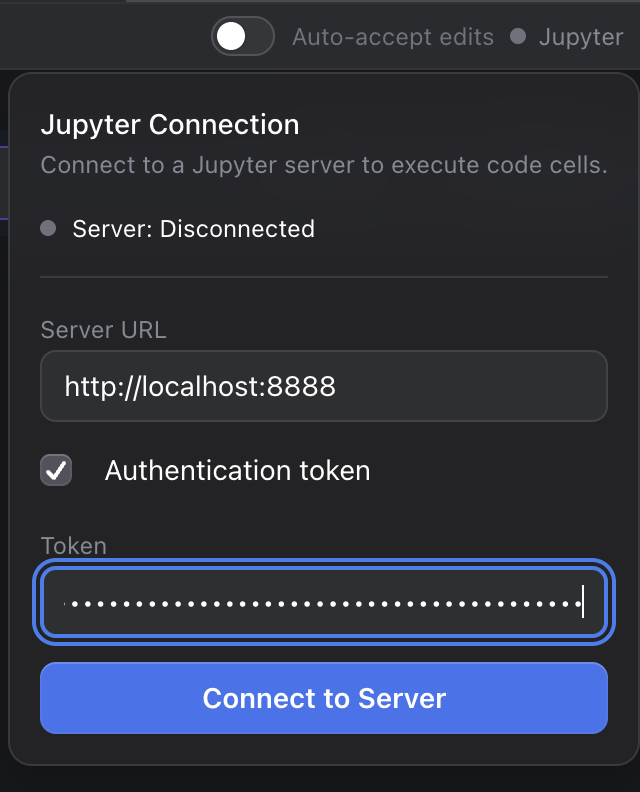
- Click the Jupyter button in the top-right corner of the notebook panel
- Enter the host URL (e.g.,
http://localhost:8888) and the token from your JupyterLab instance - Click Connect
Step 3: Start or Select a Kernel
After connecting:
- Click Start a kernel to create and attach to a new one, or
- Select an existing kernel from the list to connect to it
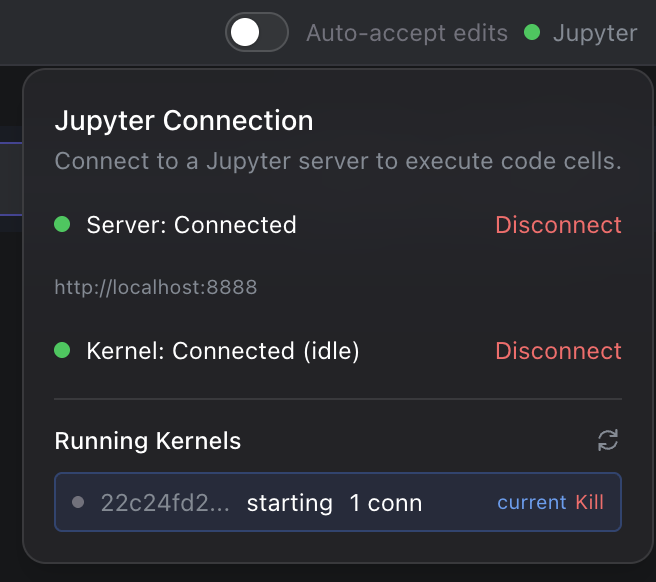
Once attached, all Python code cells in your Ragnerock notebook execute in that JupyterLab kernel.
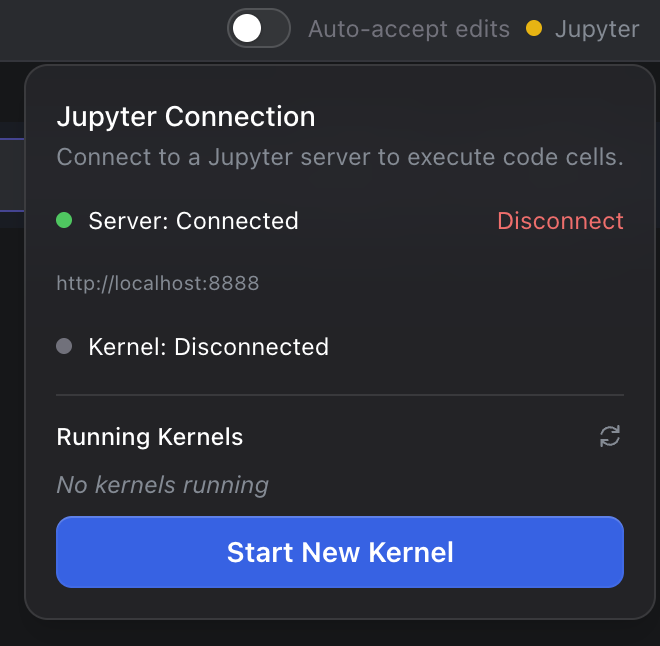
Once connected, a green indicator appears in the notebook toolbar confirming the kernel is active.
Using Code Cells with Your Kernel
Now any code cell you run in the Ragnerock notebook executes in your local environment:
# This runs in YOUR Jupyter kernel with YOUR packages
import pandas as pd
import numpy as np

# Your local packages are available
from my_analysis_toolkit import risk_model

# Data imported from query cell artifacts works seamlessly
df = pd.DataFrame(query_results)
print(df.describe())
You have full access to:
- Your locally installed Python packages (pandas, scikit-learn, custom libraries)
- Local file system paths (
pd.read_csv("/path/to/local/data.csv")) - Environment variables and credentials configured on your machine
- Running services (databases, APIs) on your local network
Combining with the Research Agent
Jupyter integration lets you combine Ragnerock’s AI capabilities with your own compute environment. A typical workflow:
- Ask the Research Agent questions in chat cells to get synthesized answers with DataFrame artifacts
- Query structured data in query cells to pull operator results as DataFrame artifacts
- Import artifacts into code cells, where data flows into your Jupyter kernel
- Analyze with your full environment: custom libraries, local data, ML models
# Import an artifact from a query cell, then combine with local data
import pandas as pd

# query_results imported from a query cell artifact
ragnerock_df = pd.DataFrame(query_results)

# Load local reference data
local_benchmarks = pd.read_csv("~/data/industry_benchmarks.csv")

# Combine and analyze
merged = ragnerock_df.merge(local_benchmarks, on="sector")
print(merged[["company", "revenue", "benchmark_revenue", "delta"]].head(10))
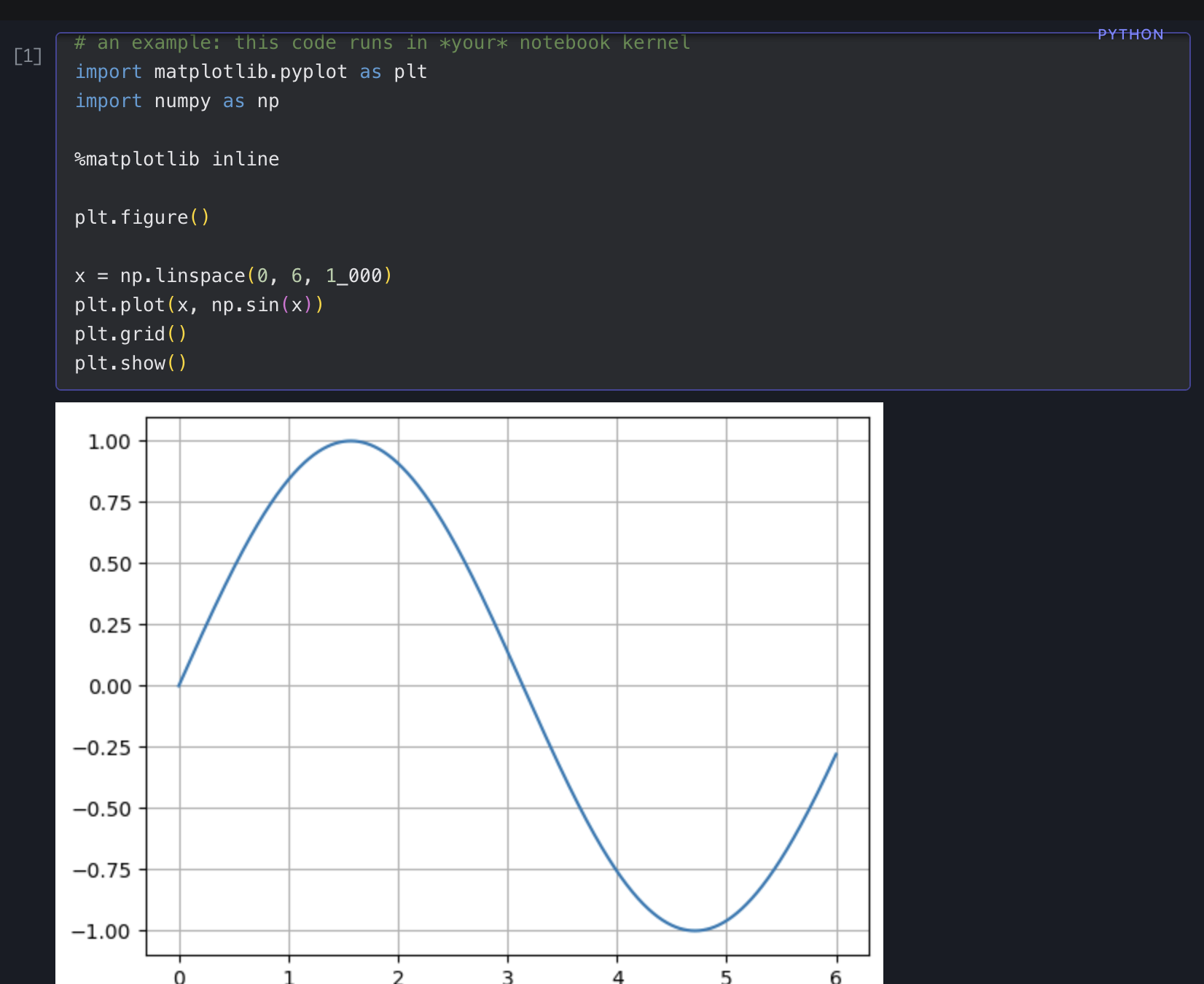
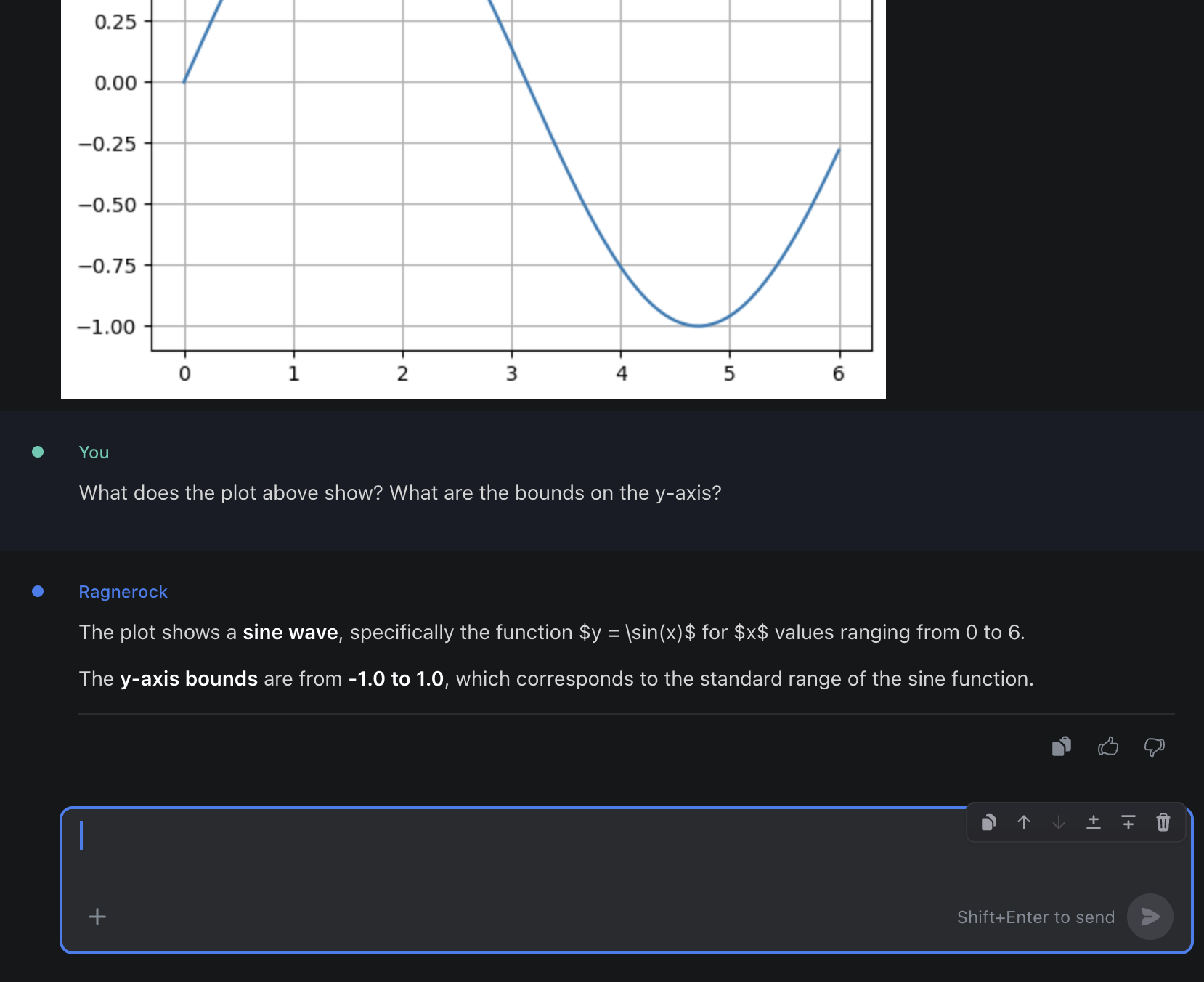
The Research Agent can see your code cells, their outputs, and any plots or visualizations you produce. This means you can run analysis in code cells, then switch to a chat cell and ask the agent to interpret your results, suggest next steps, or refine the analysis. The agent reasons about the code you wrote, the data it produced, and any charts or images rendered in the notebook.
Tips
- Keep JupyterLab running: The connection persists as long as JupyterLab is accessible. If you close and reopen Ragnerock, just reconnect.
- Kernel state persists: Variables from earlier code cells remain in memory across your session. You can import multiple DataFrame artifacts and work with them all.
- Any host works: JupyterLab can be local, on a remote server, or in a cloud environment (e.g., a VM or a container), as long as your browser can reach it and CORS is configured.
- Multiple notebooks, one kernel: You can connect multiple Ragnerock notebooks to the same kernel to share state between them.
- No Ragnerock SDK required: You don’t need to install anything Ragnerock-specific in your Jupyter environment. The connection is handled entirely through the browser.
Next Steps
- JupyterLab Integration: Architecture details and advanced configuration
- Notebooks: Cell types, artifacts, and the conversational workflow