Bring Your Own Storage
Store your document files in your own Google Cloud Storage, Amazon S3, or Azure Blob Storage.
Bring Your Own Storage (BYOBS) lets you store document files in your own cloud storage bucket instead of Ragnerock’s default storage. Metadata, embeddings, and annotations remain in the database. Only the raw document files are stored in your bucket.
This is useful for organizations that need to meet data sovereignty or compliance requirements (HIPAA, SOC2), integrate with existing cloud infrastructure, or optimize costs through pre-negotiated storage contracts.
Supported Providers
| Provider | Identifier | Credentials |
|---|---|---|
| Google Cloud Storage | gcs | Service account JSON key |
| Amazon S3 | s3 | Access key ID + secret access key |
| Azure Blob Storage | azure | Connection string, account key, or SAS token |
S3-compatible services like MinIO and DigitalOcean Spaces are also supported via a custom endpoint URL.
Setup
Configuring BYOBS follows a three-step workflow: create a configuration, validate the connection, then activate it.
Navigate to Settings > Storage to access the storage configuration page. Click Add Storage to start the setup wizard.
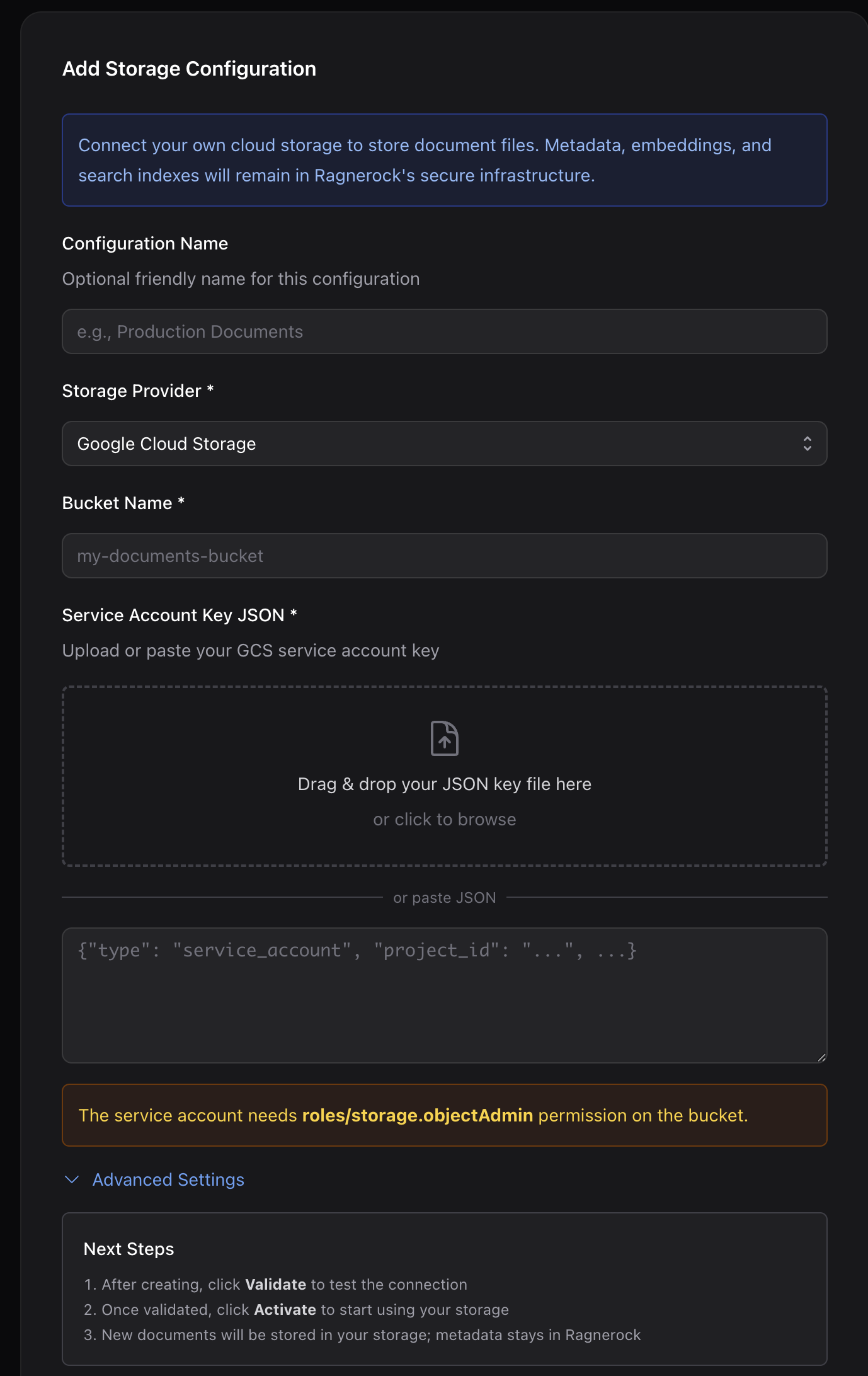
1. Create a Configuration
Select GCS, S3, or Azure as the provider type, then enter your bucket name, credentials, and optional path prefix.
The configuration is saved in an inactive, unvalidated state. Your credentials are encrypted at rest using envelope encryption.
2. Validate the Connection
After saving, click Validate on the configuration card to test connectivity. Validation checks write, read, and delete operations against your bucket to confirm that the credentials and permissions are correct.
3. Activate the Configuration
Toggle the configuration to Active in the settings page. Once activated, all new document uploads across every project in your account are stored in your bucket. Only one configuration can be active at a time. Activating a new one automatically deactivates the previous one.
Provider Credentials
Before creating a configuration, ensure your cloud storage credentials have the required permissions.
Google Cloud Storage
Create a service account with the roles/storage.objectAdmin role on your bucket, then download its JSON key. Upload the JSON key file when creating the configuration.
Amazon S3
Create an IAM user or role with s3:PutObject, s3:GetObject, and s3:DeleteObject permissions on your bucket. Enter the access key ID and secret access key in the configuration form.
For S3-compatible services (MinIO, DigitalOcean Spaces), select S3 as the provider type and enter your service’s custom endpoint URL in the Endpoint field.
Azure Blob Storage
Azure supports three credential types. The storage container must already exist. Choose one of:
- Connection string: The full Azure Storage connection string
- Account key: The storage account key along with the account name
- SAS token: A shared access signature token along with the account name
Storage Paths
Ragnerock manages all file paths within your bucket automatically. You do not need to create any directory structure. Files are organized using the following pattern:
{path_prefix}{account_id}/projects/{project_id}/documents/{timestamp}_{filename}| Component | Example | Description |
|---|---|---|
path_prefix | ragnerock/data/ | Configurable per configuration (default: ragnerock/data/) |
account_id | abc123def456 | Your Ragnerock account ID |
project_id | 789ghi012jkl | The project the document belongs to |
timestamp | 20240115_143022 | Upload timestamp (UTC) |
filename | annual_report.pdf | Original filename |
A full path looks like:
ragnerock/data/abc123def456/projects/789ghi012jkl/documents/20240115_143022_annual_report.pdfYou can customize the path prefix when creating a configuration to organize Ragnerock data within a shared bucket. For example, setting it to team-alpha/research/ places all files under that prefix.
Using with Bring Your Own Database
BYOBS and BYODB are independent features that control different parts of document storage:
| Data | Controlled by | Location |
|---|---|---|
| Document files (PDFs, spreadsheets, etc.) | BYOBS | Your cloud storage bucket |
| Document metadata, chunks, and annotations | BYODB | Your PostgreSQL or BigQuery database |
When both are active, document files live in your bucket and metadata lives in your database. Each feature can be enabled or disabled independently. Documents are only fully accessible when both the blob configuration and the database configuration that were active at upload time are currently active.
Managing Configurations
In the Storage settings page, all your configurations are listed with their provider type, bucket name, and status (active, inactive, or unvalidated). From this list, you can:
| Operation | Description |
|---|---|
| Activate / Deactivate | Toggle to switch between active and inactive. Deactivating reverts new uploads to Ragnerock’s default storage. |
| Validate | Re-run connectivity tests after credential or permission changes |
| Update credentials | Edit credentials on an existing configuration. Requires re-validation and re-activation. |
| Health check | Test connectivity and view status and latency |
| Delete | Remove a configuration (must deactivate first). Soft delete preserves audit trail. |
To rotate credentials, deactivate the configuration first, update the credentials, re-validate, then reactivate.
Important Notes
- No migration of existing documents. Enabling BYOBS only affects new uploads. Documents uploaded before activation remain in Ragnerock’s default storage and continue to be accessible.
- One active configuration per account. All projects within an account share the same active blob storage configuration.
- Each document tracks its storage location. When you switch configurations or deactivate BYOBS, previously uploaded documents still reference their original storage location and remain accessible as long as that storage is reachable.
- Credential security. Credentials are encrypted at rest using envelope encryption. Only a non-sensitive hint (e.g.,
gs://my-bucket (ragnerock@...)) is stored in plaintext for display purposes. - Changes require re-validation. Updating the bucket name, path prefix, or credentials on a saved configuration marks it as unvalidated. You must re-validate before reactivating.
Next Steps
- Bring Your Own Database: Store metadata in your own database
- Bring Your Own AI: Use your own AI provider
- Data Ingestion: Uploading data to Ragnerock