Annotations
Process and analyze your data with AI-powered operators and workflows.
Annotations are Ragnerock’s mechanism for turning raw data into structured, queryable results. Define how your data should be processed, run workflows, and query the outputs with SQL.
What Are Annotations?
The annotation system has three components:
- Operators: Define how to process your data and what outputs to produce
- Workflows: Orchestrate operators into processing pipelines
- Annotations: The structured results attached to your data sources
The result is durable, table-like data you can query with SQL, export to your data warehouse, or use in your quantitative models.
Operators
Operators define how Ragnerock should process and analyze your data. Each operator specifies an output schema (what columns and fields to produce) and AI instructions (how to fill them in).
Every operator has:
- Name: Identifier that becomes the SQL table name
- JSON Schema: The structure of the output data (columns, types, constraints)
- Generation Prompt: Instructions for the AI model
- Scope: What unit of data to process
Creating Operators
Navigate to the Workflows section in the sidebar, click Operators, then click New Operator. The operator editor lets you configure all fields:
- Enter a Name and optional Description
- Select the Scope from the dropdown (Document, Page, Paragraph, Sentence, Sheet, or Row)
- Write a Generation Prompt with instructions for the AI
- Define the JSON Schema using the visual schema builder or the raw JSON editor
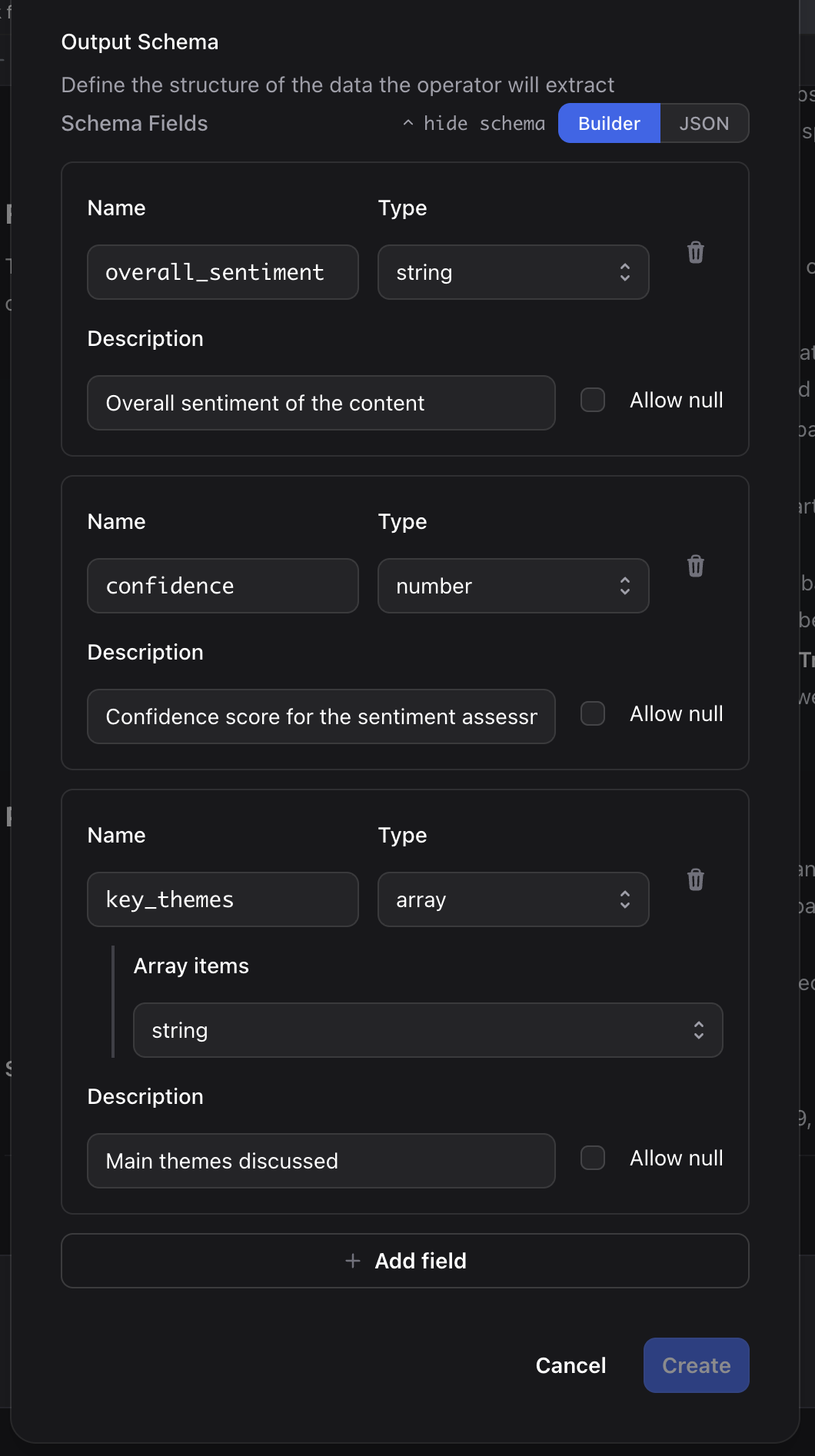
Example Schema
{
  "type": "object",
  "properties": {
    "overall_sentiment": {
      "type": "string",
      "enum": ["very_negative", "negative", "neutral", "positive", "very_positive"],
      "description": "Overall sentiment of the content"
    },
    "confidence": {
      "type": "number",
      "minimum": 0,
      "maximum": 1,
      "description": "Confidence score for the sentiment"
    },
    "key_themes": {
      "type": "array",
      "items": {"type": "string"},
      "maxItems": 5,
      "description": "Main themes discussed"
    }
  },
  "required": ["overall_sentiment", "key_themes"]
}
For a complete guide to schema design, prompts, scopes, batch processing, and multi-annotation mode, see Operators.
Workflows
Workflows chain multiple operators together into processing pipelines. They’re built using a visual graph editor and can be triggered manually or automatically when new data is uploaded.
Building Workflows
Navigate to the Workflows section in the sidebar and click New Workflow. The visual editor lets you:
- Add operator nodes by dragging them from the palette onto the canvas
- Connect nodes by drawing edges to define data dependencies
- Configure each node with conditions, error handling, and persistence settings
- Enable auto-run to trigger the workflow automatically when new data is uploaded
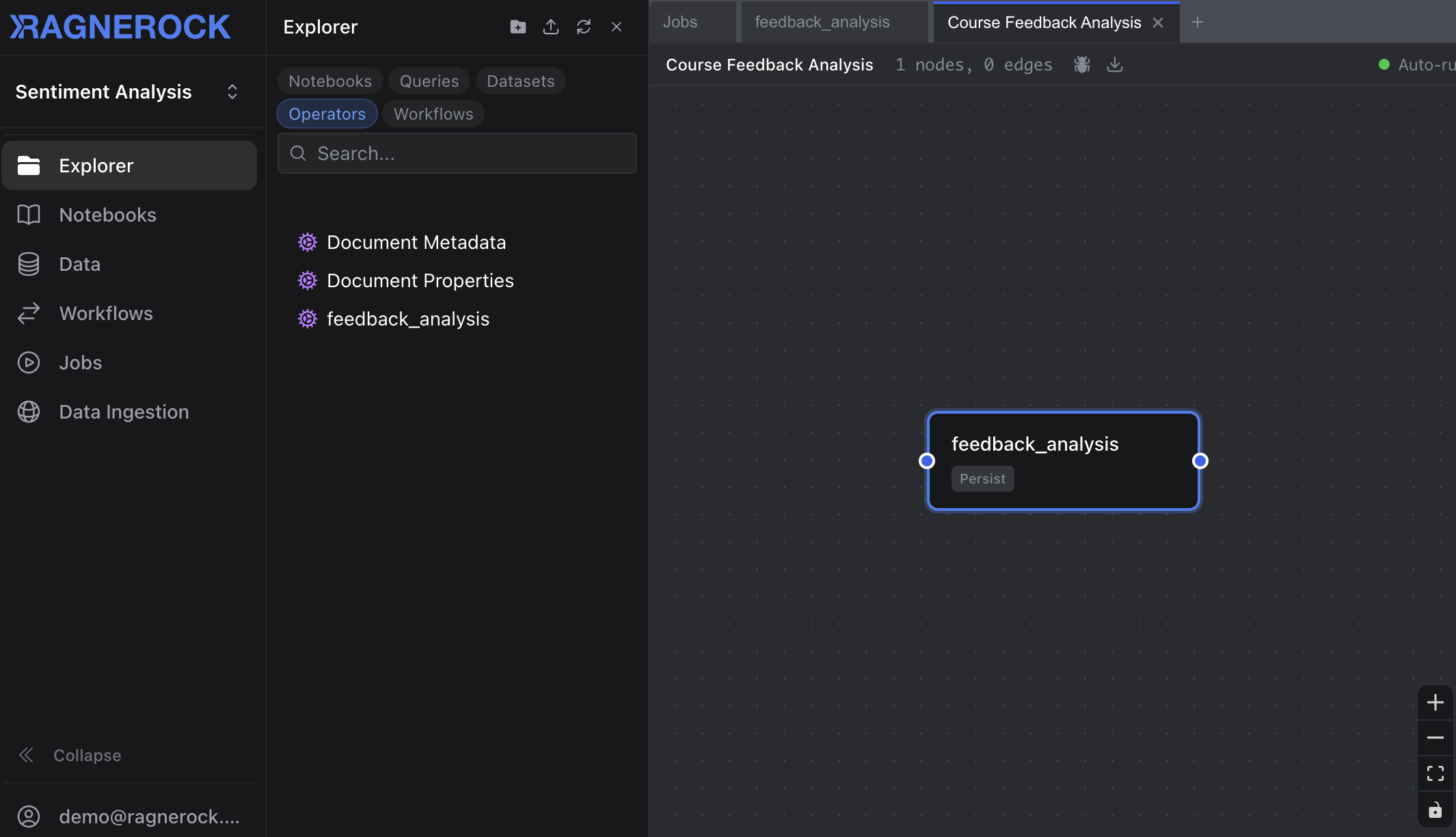
For detailed workflow features including conditional execution, error handling, ephemeral annotations, and YAML import/export, see Workflows.
Running Workflows
To run a workflow:
- Open the workflow in the editor and click Run, or right-click a workflow in the sidebar and select Run
- Select the data sources to process from the dialog
- Click Run Workflow to start execution
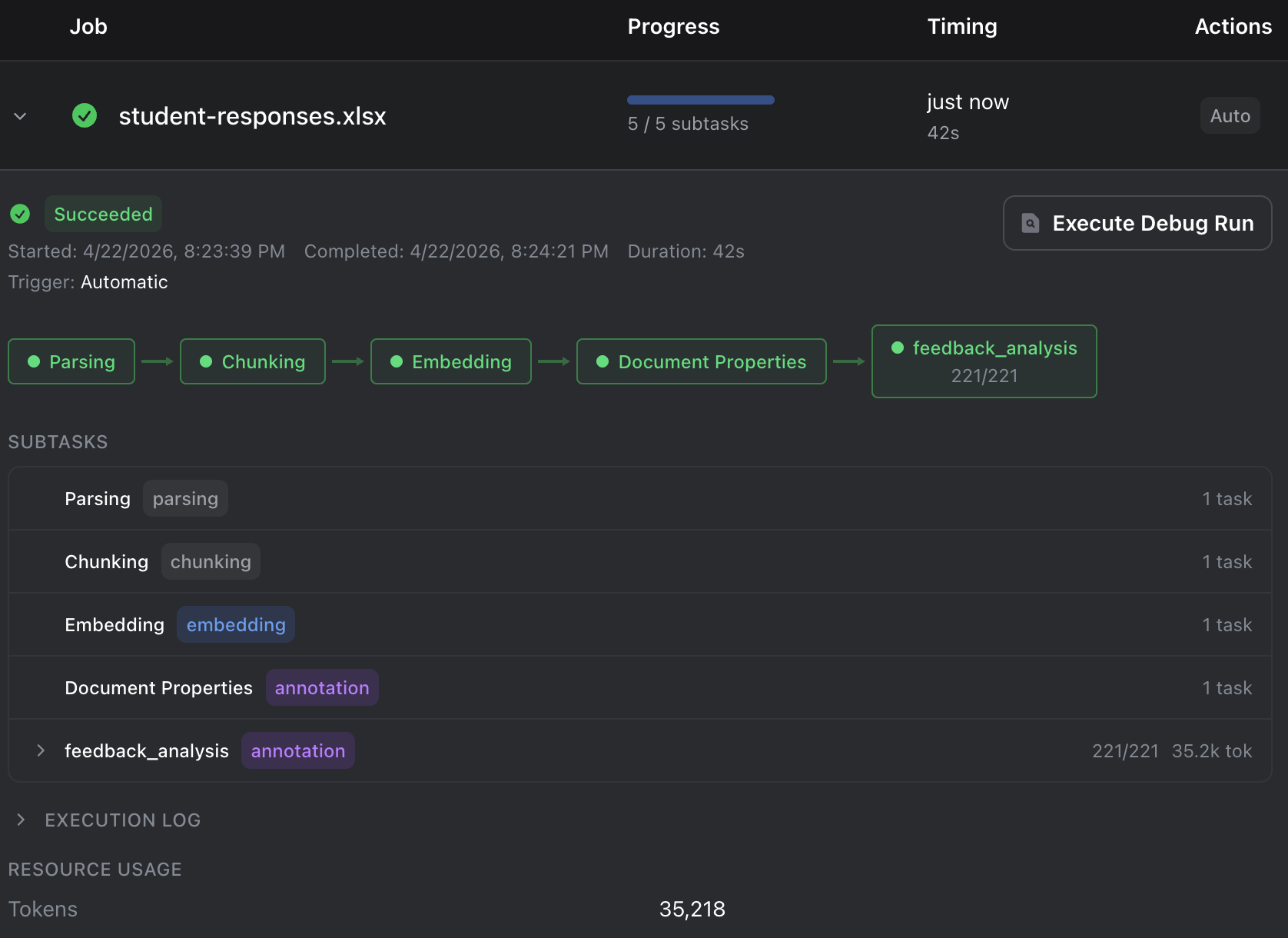
- Monitor progress in the Jobs dashboard
Querying Annotations
After workflows run, the results are queryable with SQL. Open the Query Explorer from the sidebar and use the operator name as the table name:
SELECT
    document_name,
    overall_sentiment,
    confidence,
    key_themes
FROM sentiment_analysis
WHERE overall_sentiment IN ('positive', 'very_positive')
ORDER BY confidence DESC
LIMIT 20
Click Execute to run the query. Results appear in a sortable, filterable table.
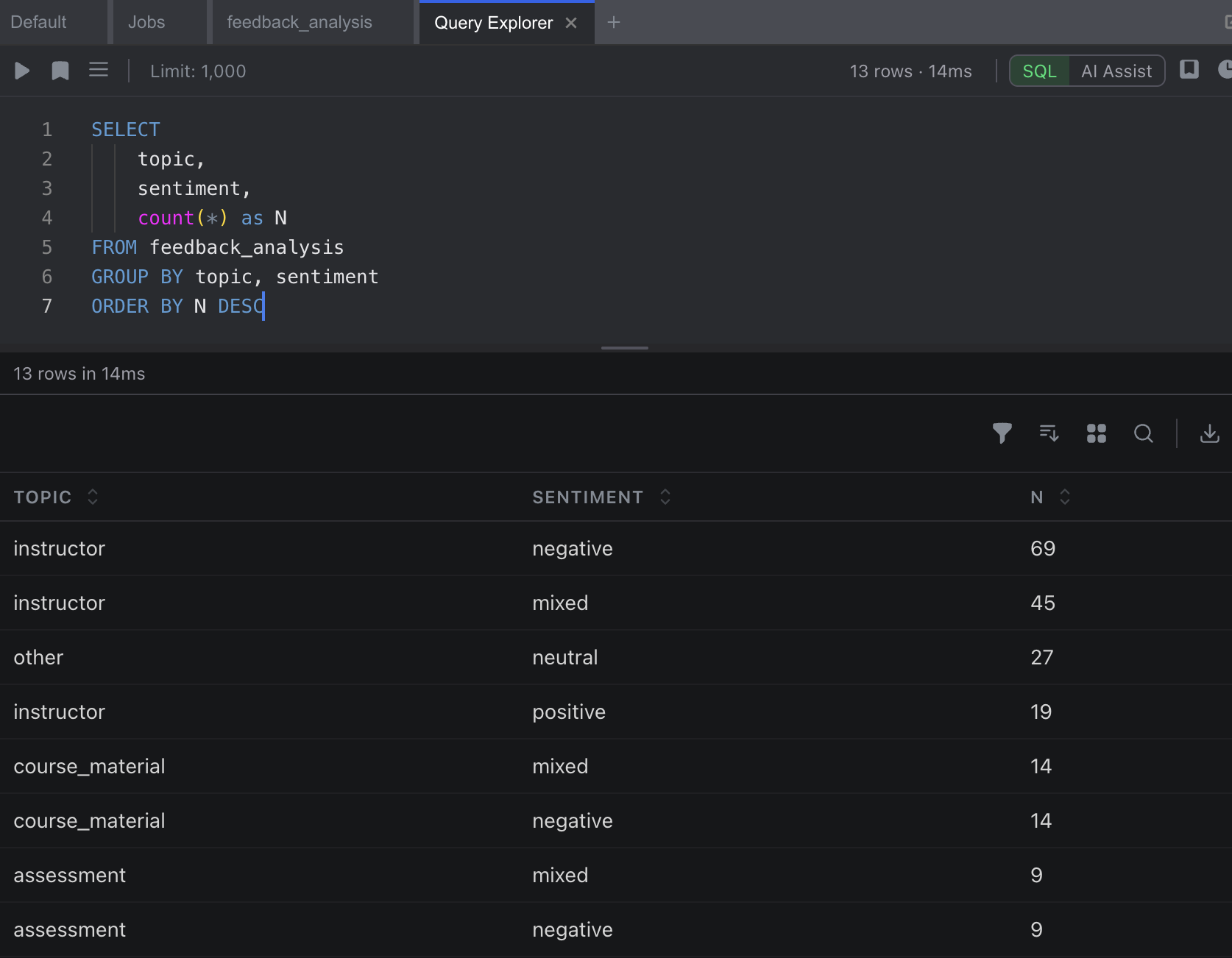
Aggregations
SELECT
    overall_sentiment,
    COUNT(*) as count,
    AVG(confidence) as avg_confidence
FROM sentiment_analysis
GROUP BY overall_sentiment
ORDER BY count DESC
Provenance
Every annotation maintains full provenance:
- Source: The original data source
- Location: The specific page, paragraph, or row
- Operator: Which operator produced the result
This enables complete audit trails and verification of any data point.
Best Practices
- Start specific, then generalize: Begin with a focused schema, expand as needed
- Use enums for categorical data: Enables consistent filtering and aggregation
- Test on sample data: Validate operator design before batch processing
- Query incrementally: Start with simple queries, add complexity as needed
- Track provenance: Use annotation provenance for audit trails
Next Steps
- Learn about Data Sources for upload and processing
- Dive deeper into Operators design and configuration
- Understand Workflow pipeline orchestration
- Explore SQL Queries for advanced syntax
- Use the Research Agent for interactive exploration