AI Research Agent
Understand the Research Agent's capabilities, including search, analysis, coding, and the artifacts it produces.
The Research Agent is an AI assistant built into every Ragnerock notebook. It can search your documents, query structured data, generate visualizations, write code, and produce cited answers grounded in your source materials. Understanding its capabilities helps you craft prompts that get the most out of your research sessions.
What the Agent Can Do
Search and Cite
The agent searches across all documents in your project using both semantic (meaning-based) and keyword matching. It generates multiple queries internally to maximize recall, ranks the results, and synthesizes a response with citations linking back to the original source text.
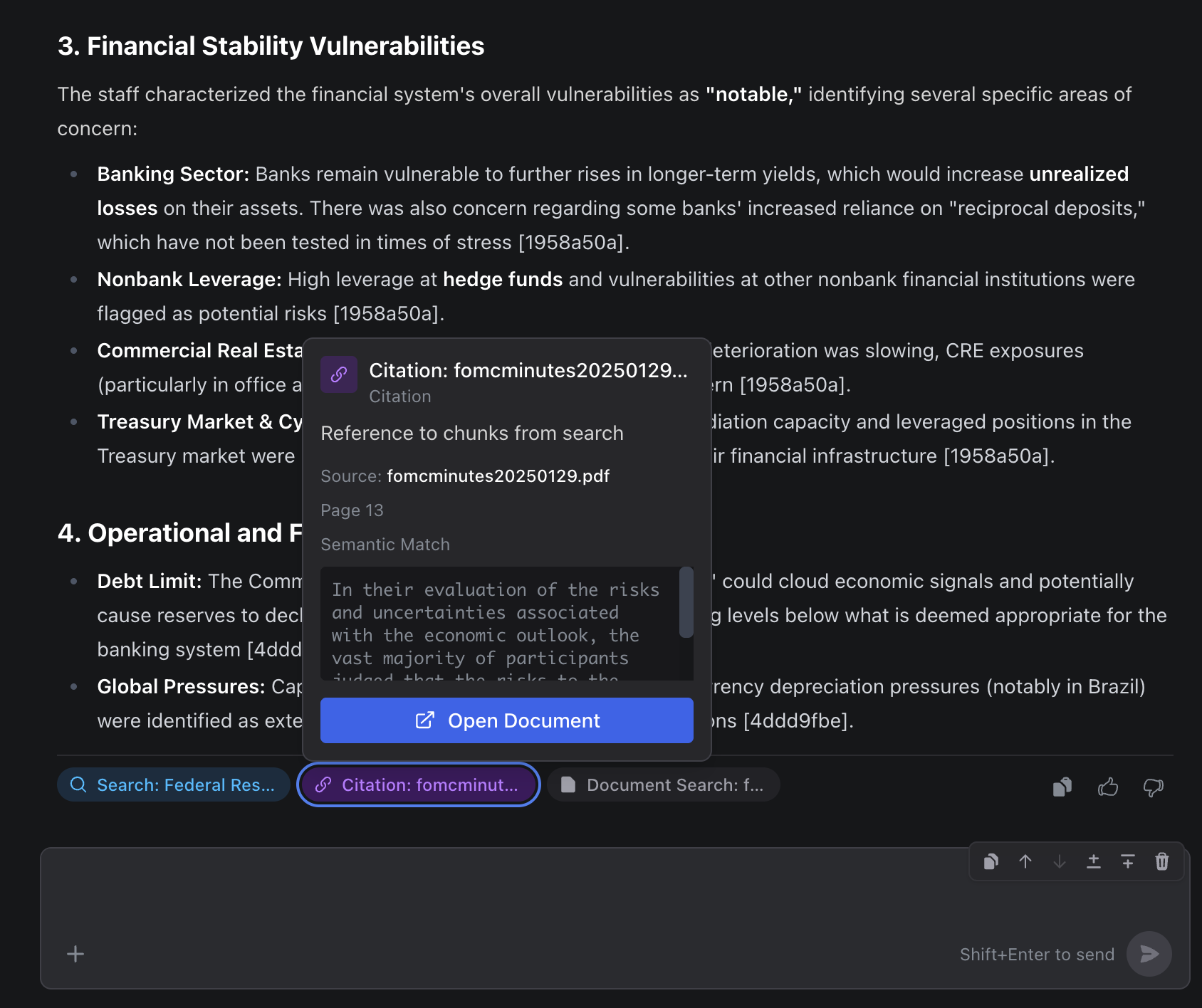
Every claim the agent makes is backed by citations: references to specific passages in your source documents. Click any citation to see the exact text, page number, and location in the original document. This provenance chain lets you verify every insight against the source.
“What do our SEC filings say about supply chain risks?”
Ask for citations explicitly when you need to verify a specific claim: “Please give me a citation for the revenue figures you mentioned.”
Query and Analyze Data
The agent can translate natural-language questions into SQL, execute queries against your documents and annotation tables, and return structured results. It can also perform statistical analysis and generate visualizations, all without requiring a Jupyter kernel connection.
“Show me the distribution of sentiment scores across all earnings calls”
“How many documents mention inflation, grouped by year?”
For quantitative questions, the agent queries the data, analyzes the results, and can produce summary statistics, scatter plots, histograms, line charts, and bar charts.
Read Documents
When search snippets aren’t enough, the agent can read the full text of a document page by page. This is useful when you need comprehensive context, for example reading an entire executive summary or reviewing a full risk factors section.
“Read the full executive summary from the Q4 earnings call”
For tabular files (CSV, Excel), the agent uses queries rather than reading raw text.
Explore Your Project
The agent can list all operators configured in your project, including their descriptions, schemas, and example outputs. It can also look up metadata and annotation properties for specific documents. This helps you understand what structured data is available and what columns you can query.
“What operators are available in this project?”
“What properties does this document have?”
Artifacts
When the agent responds, it may produce artifacts alongside its text: interactive data objects you can work with directly in the notebook.
Citations
Citations link to a specific document, page, and paragraph in your source material. They appear as numbered markers like [1], [2], [3] in the agent’s response text. Click any citation to:
- See the original text: the exact passage that supports the claim
- Jump to the source: navigate directly to the page and location in the original document
- Verify the context: read the surrounding text to ensure the excerpt hasn’t been taken out of context
DataFrames
DataFrames are tabular results produced by queries or analysis. They appear as interactive tables in the notebook with sortable columns and row counts. DataFrames carry an ID that you can reference in follow-up prompts (e.g., “Analyze that DataFrame”).
You can import DataFrames into code cells for further analysis, or into your JupyterLab environment for work with your full local toolkit.
Search Results
When the agent searches your documents, it may surface a search results artifact showing what it found. Each result includes a content preview, relevance score, and source document reference. This gives you an overview of the agent’s research before it synthesizes a response.
Visualizations
The agent can generate charts and plots from data analysis: scatter plots, histograms, line charts, and bar charts. Visualizations appear inline in the notebook. Up to 3 plots can be generated per analysis turn.
AI Coding Assistant
The Research Agent can also act as a coding assistant within the notebook. When you ask it to write code, it proposes new cells that you can review before they execute.
How It Works
Ask the agent to write code in natural language:
“Write a script to calculate year-over-year revenue growth for each company”
The agent proposes one or more code cells. You can:
- Accept a cell: it’s added to the notebook and can be executed
- Reject a cell: it’s discarded
The agent can propose multiple cells in sequence to accomplish multi-step tasks, and it understands the output of previous cells to inform subsequent ones.
Auto-Accept Mode
Auto Mode is on by default in the notebook toolbar: the agent creates and runs code cells without asking for approval on each one, reads the output, and keeps working. This is what makes AI-assisted exploratory data analysis practical. The agent can:
- Write and execute code in sequence to achieve multi-step objectives
- Read your documents, see visualizations and plot outputs, and understand your data context
- Iterate on analysis based on intermediate results
- Propose follow-up analyses based on what it discovers
This is particularly powerful because the agent has access to your documents, operators, and project context. It can write informed analysis code that references your actual data, combining the agent’s knowledge of your document library with programmatic data manipulation.
When to Use Coding vs. Built-in Analysis
| Approach | Best for | Kernel required |
|---|---|---|
| Built-in analysis | Quick stats, standard visualizations, data exploration | No |
| Code cells | Custom logic, complex transformations, integration with your own libraries | Yes (via JupyterLab connection) |
For standard analysis tasks (summary statistics, filtering, grouping, common chart types), the agent’s built-in analysis capabilities are sufficient and don’t require a running Jupyter kernel. Reserve code requests for custom logic that goes beyond what the built-in analysis can express.
Interaction Patterns
The agent often chains multiple capabilities in a single turn. Here are common workflows:
Research
Ask a question, get a cited answer, then click citations to verify against the source.
“What do our filings say about cybersecurity risk?”
Data Exploration
Ask about data, get a DataFrame, then ask for a visualization or further analysis.
“Show me the distribution of sentiment scores across all earnings calls”
Agent queries data, produces DataFrame and histogram
Deep Dive
Search broadly, read a specific document, then extract specific data points.
“Summarize the executive summary from the Goldman Sachs report”
Agent finds document, reads it, produces summary with citations
Code-Assisted Analysis
Query data, explore it, then write custom code for advanced follow-up.
“Analyze the correlation between sentiment and returns, then write code to backtest a simple strategy”
Agent queries and analyzes data, then proposes code cells for the backtest
Tips
-
Be specific about what you want: “Show the distribution of sentiment scores” triggers a visualization, while “How many documents have sentiment > 0.8?” triggers a SQL query. The more specific you are, the better the agent can choose the right approach.
-
Reference existing artifacts: After a query produces a DataFrame, say “Analyze that DataFrame” or “Plot column X from the previous results” rather than re-querying the data.
-
Let the agent choose the tool: You don’t need to name tools or capabilities explicitly. Describe what you want and the agent selects the right approach. “Compare revenue across companies” will automatically trigger a query and analysis.
-
Iterate incrementally: Start broad (“Search for mentions of inflation”), then narrow (“Read the full section from that Goldman report”), then quantify (“Query the sentiment scores for all inflation-related passages”).
-
Switch Auto Mode off when you want the wheel: It is on by default, which is what you want for exploratory analysis — the agent iterates through the steps on its own. Turn it off in the toolbar when you would rather read and accept each cell before it runs.
Next Steps
- Notebooks: Cell types, artifacts, and the conversational workflow
- Queries: SQL reference for the query capabilities the agent uses
- JupyterLab Integration: Connect your own compute environment for code execution