Data Ingestion
Upload and process documents in any format, including PDFs, spreadsheets, presentations, and more.
Ragnerock can ingest documents in a variety of formats, from PDFs and spreadsheets to plain text and images. You can upload files directly from your local machine, provide a URL to fetch remotely, or configure automated web scraping to continuously ingest content from websites. Once uploaded, every document passes through a processing pipeline that extracts text, generates searchable chunks, and creates vector embeddings, making it ready for semantic search, annotation workflows, and agentic research.
Supported Formats
Ragnerock processes three categories of documents (text, tabular, and image), each with a distinct extraction and indexing path.
| Format | Extensions | Category | Processing Path |
|---|---|---|---|
.pdf | Text | OCR extraction (with embedded-image summarization) > pages > paragraph chunks > embeddings | |
| Word | .docx | Text | Direct text extraction > paragraph chunks > embeddings |
| Markdown | .md | Text | Direct parsing > paragraph chunks > embeddings |
| Plain Text | .txt | Text | Direct parsing > paragraph chunks > embeddings |
| Jupyter Notebook | .ipynb | Text | Cell extraction > paragraph chunks > embeddings |
| Excel | .xlsx | Tabular | Sheet + row parsing > row-based units > embeddings |
| CSV | .csv | Tabular | Row parsing > row-based units > embeddings |
| JPEG | .jpg, .jpeg | Image | Annotation workflows only (no embedding) |
| PNG | .png | Image | Annotation workflows only (no embedding) |
Text documents are extracted into pages, split into paragraph-level chunks, and embedded for semantic search. They support annotation at document, page, or chunk level.
Tabular documents are parsed into sheets and rows. Each row’s column values are combined into a text representation that can be embedded and searched. They support annotation at document, sheet, or row level.
Image documents skip extraction and embedding entirely. They are processed only through annotation workflows, where vision-capable AI models analyze the image content directly.
Upload Methods
File Upload
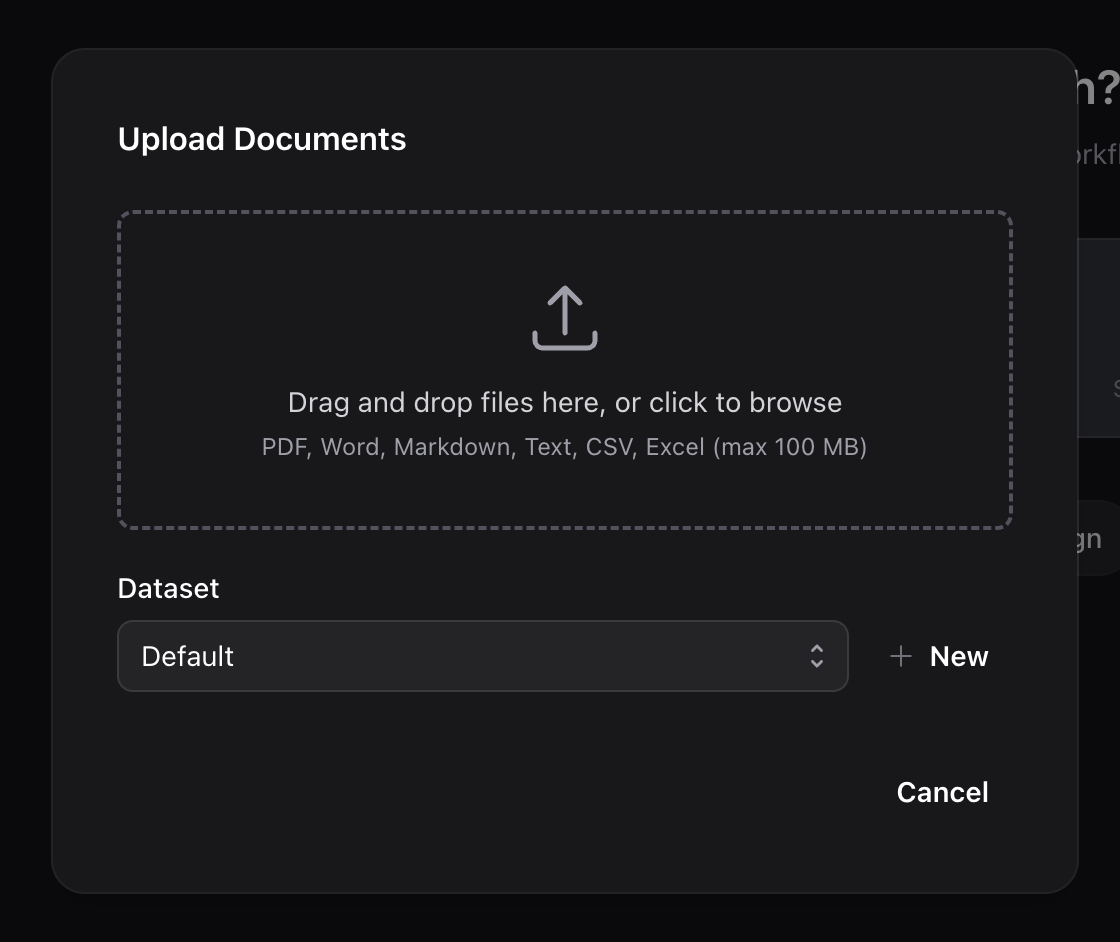
Click the Upload button in the sidebar or on the welcome screen to open the upload dialog.
- Drag and drop files into the upload area, or click Browse to select files from your computer
- Select multiple files for batch upload. Each file is processed independently.
- Optionally assign documents to a dataset for organization
- Click Upload to start processing
The upload dialog shows real-time progress for each file. Once a file is uploaded, processing begins automatically: text extraction, chunking, and embedding generation run in the background. If any annotation workflows are configured to auto-run, they execute once processing completes.
URL Ingestion
You can also ingest documents by URL. In the upload dialog, switch to the URL tab and enter the document URL. Ragnerock downloads the file and processes it identically to a local upload. This is useful for documents hosted on file servers, cloud storage, or public URLs.
Web Scraping
For continuous ingestion from websites, Ragnerock provides a web scraping system with a dedicated dashboard. Navigate to Jobs > Data Ingest to access the scraping dashboard.
The dashboard lets you:
- Create scrape configurations: Specify a URL, crawl depth, page limits, and optional authentication
- Schedule recurring runs: Set up cron-based scheduling for periodic re-scraping
- Monitor scrape runs: View a timeline of all runs with their status and document counts
- Track content changes: Compare versions of scraped pages with a side-by-side diff viewer
- View the page content tree: Browse the hierarchical structure of scraped pages

Web scrape configurations support:
- Crawl depth (1-3 levels): how many link levels deep to follow from the starting URL
- Page limits: maximum pages to scrape per depth level
- Scheduled runs: cron-based scheduling for periodic re-scraping
- Change detection: only new or modified pages are re-processed on subsequent runs
- Authentication: HTTP Basic Auth for protected sites
- Linked file discovery: PDFs, Word documents, spreadsheets, and other files linked on scraped pages are automatically downloaded and ingested as separate documents
Processing Pipeline
After upload, every document passes through a series of processing stages. The entire pipeline runs asynchronously. You can continue working while documents process in the background.
┌────────┐    ┌────────────┐    ┌──────────┐    ┌────────────┐    ┌────────────┐
│ Upload │───>│ Extraction │───>│ Chunking │───>│ Embedding  │───>│ Annotation │
│        │    │            │    │          │    │ Generation │    │ (optional) │
└────────┘    └────────────┘    └──────────┘    └────────────┘    └────────────┘
Upload & Validation
The document is stored in your project’s blob storage and its format is validated. A processing job is created and queued for a worker to pick up.
Text Extraction
Ragnerock uses format-specific extraction strategies:
- PDFs: Processed with OCR technology that handles both scanned and digitally-created documents. Content is extracted page by page, with table structures preserved. Large PDFs are processed in 15-page batches internally.
- Word, Markdown, plain text: Parsed directly without OCR. Content is decoded and validated with the original structure preserved.
- Jupyter Notebooks: Cell content is extracted as text, preserving code and markdown cells.
- Excel and CSV: Parsed into structured sheets and rows with automatic column type inference (see Format-Specific Guidance below).
- Images: No text extraction is performed. Images proceed directly to annotation workflows.
Chunking
Extracted text is segmented into chunks, the fundamental units used for search and annotation:
- Text documents are split on paragraph boundaries (double line breaks), preserving the natural semantic structure. Each chunk includes character position metadata that maps back to the exact location in the source document.
- Tabular documents treat each row as an individual chunk. Column values are combined into a text representation for embedding.
- Images skip chunking entirely.
A quality filter removes low-value chunks (e.g., corrupted OCR output or non-meaningful characters) to keep the search index clean.
Embedding Generation
Each chunk is converted into a vector embedding that captures its semantic meaning. Embeddings are stored in PostgreSQL with pgvector and power Ragnerock’s semantic search, enabling you to find conceptually related content even when exact terms don’t match.
Chunks are processed in parallel batches for throughput. Once embeddings are generated, the document is fully searchable.
Annotation
If your project has annotation workflows configured to auto-run, they execute automatically after embedding completes. This lets you extract structured data (sentiment scores, financial metrics, classifications, etc.) from every document as it’s ingested. See Annotations for details.
For a deeper look at the job system, worker architecture, and reliability mechanisms, see Data Processing Architecture.
Monitoring Processing Status
Each document in the document list shows a status badge indicating where it is in the pipeline. You can also monitor all processing jobs in the Jobs dashboard.
| Status | Badge | Meaning |
|---|---|---|
| Pending | Gray | Queued, waiting for a worker to pick it up |
| Processing | Blue spinner | Actively being parsed, chunked, or embedded |
| Ready | Green checkmark | All stages completed. Document is fully indexed. |
| Error | Red indicator | Processing failed (partial results may be available) |
Handling Errors
When a document fails processing, hover over the error badge in the document list to see a description of the failure. Common causes include:
- Unsupported format: File doesn’t match the declared document type
- Corrupted file: File can’t be read or parsed
- Extraction failure: OCR or parsing service encountered an error
- Timeout: Processing exceeded the allowed time window
You can re-upload the document to retry processing. For web scraping jobs, transient errors (timeouts, rate limits) are automatically retried, while permanent errors (malformed URLs, blocked domains) are reported immediately.
Batch Upload
The upload dialog supports selecting multiple files at once. Simply drag multiple files into the upload area, or use your file picker to select multiple documents. Each file is processed independently and you can monitor progress for all uploads in the document list.
Format-Specific Guidance
PDFs
Ragnerock handles both digitally-created and scanned PDFs using OCR technology. Key characteristics:
- Table extraction: Tables embedded in PDFs are recognized and preserved as structured markdown during extraction. This means table content is searchable and available for annotation.
- Scanned documents: Handwritten or scanned pages are OCR-processed. Native digital PDFs produce higher-quality text, so prefer digital originals when available.
- Large files: PDFs are processed in 15-page batches internally. There’s no hard page limit, but very large documents (hundreds of pages) take proportionally longer.
- Page-level access: After processing, each page’s content is stored separately, enabling page-level annotations and precise citations.
- Embedded images: Charts, diagrams, screenshots, and other images embedded inside the PDF are automatically summarized into text descriptions and spliced into the page content. See Embedded Images in PDFs below.
Embedded Images in PDFs
PDFs commonly contain non-text content — charts, exhibits, scanned tables, diagrams, screenshots, equations rendered as images, photographs, and maps. During PDF extraction, each embedded image is summarized by a vision-capable AI model and the description is spliced inline into the page content where the image appeared.
How descriptions appear in extracted content
In the extracted page markdown, each image is replaced by an inline marker of the form:
[Image: <description>]The description captures visible text and numbers verbatim where possible, along with axes, legends, tabular data, and a brief account of what the image depicts. The [Image: ...] prefix makes it unambiguous to both human readers and downstream LLMs that the span describes an image rather than verbatim document prose.
Downstream effects
- Search: Semantic and keyword search now surface image content. A query that matches a chart’s title, an axis label, or a value in an exhibit can return the page containing that image.
- Annotations: Operators that run on document, page, or chunk content see image descriptions as part of the text. Annotation prompts can reference image content the same way they reference any other page content.
- Citations and provenance: Citations link back to the page on which the image appeared. The original image is preserved in storage so future tooling can render it or re-summarize it with a different model or prompt.
What this does not do
- It does not enable visual question answering against the raw pixels — annotators and the agent receive the textual description, not the image itself.
- It does not produce per-image vector embeddings; image content participates in semantic search via the description text.
- It does not make individual images addressable as standalone annotation targets — annotation operates on document, page, or chunk granularity as before.
Limits and behaviour
- Per-page cap: Up to 20 images per page are summarized. Trailing images on a page beyond that cap are dropped. This protects ingest cost on noisy scans where the OCR step occasionally over-segments image regions.
- Image size: Very large embedded images (over ~1 MB raw decoded) are skipped to bound memory and latency.
- Failure handling: If the vision model fails on a particular image, the inline marker becomes
[Image: description unavailable]and ingestion continues. A single bad image will never fail the document.
Cost and fidelity
Image summarization adds an incremental ingestion cost — roughly $0.0006 per image with the default model (Gemini Flash). A typical 50-page research report with five images per page costs roughly $0.15 in additional summarization. This is paid once at ingest, not on every annotation.
The tradeoff is fidelity: descriptions are filtered through the summarizer’s prompt, so exact axis values or every cell of a complex chart may not survive verbatim. For workflows that need pixel-perfect chart data, plan a follow-up vision-model annotation step against the original images rather than relying on the inline description.
Excel (.xlsx)
Each sheet in an Excel file is parsed independently:
- Column type inference: Ragnerock automatically detects column types including string, integer, float, boolean, datetime, and mixed.
- Row-based processing: Each row becomes a separate searchable unit. Column values are combined into a text representation for embedding.
- Row limits: Up to 100,000 rows per sheet are supported. Files exceeding this limit will fail processing.
- Cell value limits: Individual cell values are truncated at 1,000 characters. Row content (all columns combined) is capped at 8,000 characters for embedding.
- Multi-sheet support: Each sheet is processed and stored as a distinct section of the document.
CSV
CSV files are processed as a single-sheet tabular document with the same column type inference and row limits as Excel. Column headers are read from the first row.
Images (JPG, PNG)
This section covers image-only document uploads — JPEG and PNG files uploaded directly. Images embedded inside PDFs follow a different path; see Embedded Images in PDFs.
Image-only uploads are not parsed for text and do not receive vector embeddings. They are processed exclusively through annotation workflows, where vision-capable AI models receive the image directly and can classify, describe, or extract information from it. This is useful when you want to treat the image itself as the unit of analysis — for example, running an annotation operator that scores each image against a custom rubric.
Jupyter Notebooks (.ipynb)
Notebook cells (code and markdown) are extracted as text content and processed through the standard text pipeline. This makes notebook content searchable alongside your other documents.
Best Practices
-
Use descriptive names: Document names are used for keyword search and display in the UI. Use consistent, descriptive naming conventions (e.g.,
AAPL-10K-2024rather thandocument-1). -
Prefer digital PDFs: Native digital PDFs extract more accurately than scanned documents. When you have both, use the digital version.
-
Check status before querying: Wait for documents to reach
SUCCESSstatus before running search queries, annotation workflows, or agent conversations that reference them. -
Batch thoughtfully: Each upload triggers an independent processing job. Uploading hundreds of documents at once is fine (they process in parallel) but monitor the batch for failures.
-
Right-size your spreadsheets: While Ragnerock supports up to 100,000 rows per sheet, smaller spreadsheets (under 10,000 rows) produce better embedding quality and faster processing.
Next Steps
- Data Sources: Data management, processing pipeline, and organization
- Annotations: Extract structured data from your documents with annotation workflows
- Data Processing: Architecture details on the processing pipeline and job system