Operators
Define operators to process and analyze your data into structured, queryable results.
Operators are the building blocks of Ragnerock’s annotation system. An operator is a user-defined AI agent with a strongly typed output schema, a data contract that constrains what the agent is allowed to produce. Because the output schema is enforced on every extraction, you get consistent, queryable results across all your documents and can integrate operator outputs into downstream systems with confidence. This guide walks through creating operators, designing schemas, writing effective prompts, choosing the right scope, and using advanced features like batch processing and multi-annotation mode. For a high-level overview, see Annotations.
Creating an Operator
Navigate to the Workflows section in the sidebar, click Operators, then choose:
- New Document Operator: for document-like data such as PDFs, articles, Word documents, websites, and other natural language or semi-structured content
- New Tabular Operator: for tabular data such as CSVs, Excel workbooks, and other row-oriented files
The operator editor walks you through each field:
- Name: Give the operator a descriptive name (e.g., “Sentiment Analysis”, “Entity Extraction”). This name also becomes the SQL table name for querying results (lowercased, spaces replaced with underscores).
- Description: A human-readable description of what the operator extracts.
- Scope: Select the processing granularity from the dropdown. See Choosing the Right Scope for guidance.
- Generation Prompt: Write instructions for the AI model in the text area. See Writing Effective Generation Prompts for best practices.
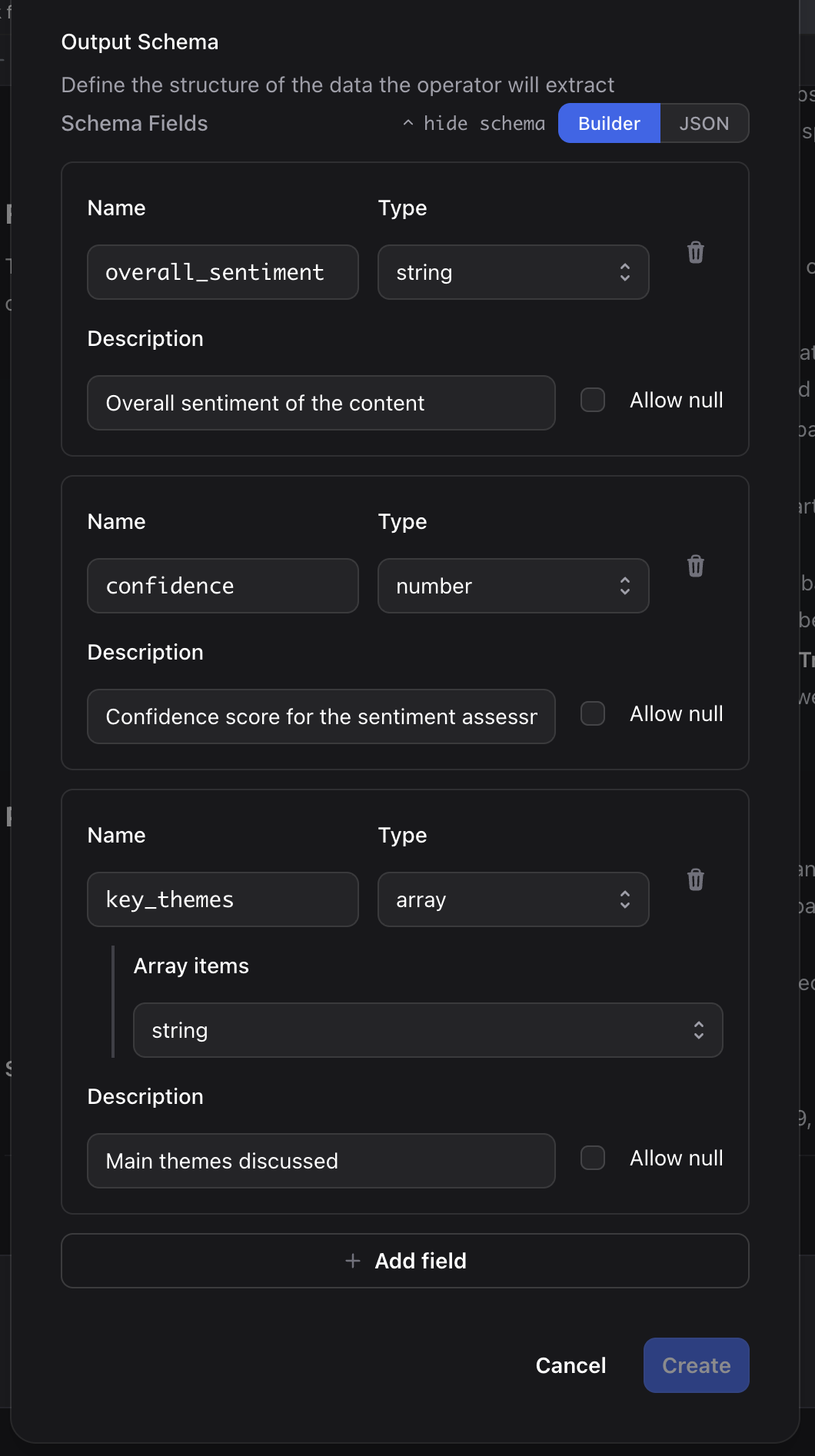
- Output Schema: Define the structure of extracted data using the schema builder. See Defining the Output Schema for detailed guidance.
- Batch Size (tabular operators only): Set how many rows to process per LLM call. Only visible when the scope is ROW.
- Multi-Annotation (optional): Enable to split array outputs into individual annotations.
Your existing operators are visible in the Workflows > Operators section of the sidebar flyout.
Anatomy of an Operator
An operator combines an output schema (the data shape), a generation prompt (the AI instructions), and a scope (the granularity level). Here are the configurable fields:
| Field | Required | Description |
|---|---|---|
| Name | Yes | Display name for the operator. Also becomes the SQL table name. |
| Description | No | Human-readable description of what the operator extracts |
| Output Schema | Yes | Defines the structure of extracted data: field names, types, and constraints |
| Generation Prompt | Yes | Instructions for the AI model |
| Scope | Yes | Processing granularity, i.e. what unit of text each extraction runs on |
| Batch Size | No | Number of rows per LLM call. ROW scope only. Range: 1-500. |
| Multi-Annotation | No | When enabled, splits array outputs into individual annotations. Default: off. |
Defining the Output Schema
The output schema defines the structure of the operator’s results. It’s strongly typed: each field has a name, type, and optional constraints. This means every output conforms to the same shape, making results queryable with SQL and compatible with downstream systems.
Use the schema builder in the operator editor to define your fields. For each field, you select a type, configure constraints, and write a description. The schema builder generates a JSON Schema under the hood, but most users never need to work with the raw JSON directly.
Field Types
The schema builder supports the following field types:
| Type | Description | Example |
|---|---|---|
| String | Free-form text | A summary, a name, a label |
| Number | Decimal or integer values | A score, a dollar amount, a percentage |
| Integer | Whole numbers only | A count, a year, a ranking |
| Boolean | True or false | Whether a statement is forward-looking |
| Enum | A fixed set of allowed values | Sentiment categories, risk levels, document types |
| Array | A list of values or objects | Key themes, extracted entities, risk factors |
| Object | A group of related fields | Financial margins (gross, operating, net) |
Constraining Outputs
Adding constraints to your fields improves extraction consistency. The more constrained the schema, the more reliable the output.
Enum: Restricts a field to a fixed set of values. Essential for categorical fields, as it ensures consistent values across all documents and enables SQL GROUP BY and WHERE filtering. In the schema builder, select Enum as the type and enter the allowed values.
Min / Max: Bounds numeric values to a valid range. For example, a confidence score between 0 and 1, or a dollar amount that must be positive.
Required vs. Optional: Mark fields as required when they should always be present. Omit fields from required if they may not apply to every document (e.g., an actionable_item field that only exists when the source text proposes a change).
Description: Per-field instructions visible to the AI model during extraction. This is the single most effective way to improve extraction accuracy. Write descriptions that tell the model exactly what to extract and how to handle edge cases.
Example: Sentiment Analysis Schema
Here’s how you’d configure a sentiment analysis operator in the schema builder:
| Field | Type | Required | Constraints | Description |
|---|---|---|---|---|
overall_sentiment | enum | yes | Values: “very_negative”, “negative”, “neutral”, “positive”, “very_positive” | Overall sentiment toward the company’s outlook |
confidence | number | yes | Min: 0, Max: 1 | Confidence in the sentiment assessment (0 = uncertain, 1 = very confident) |
key_themes | array of strings | yes | Max items: 5 | Main themes discussed, as concise labels (e.g., “revenue growth”, “margin pressure”) |
notable_quotes | array of objects | no | Max items: 3 | Most impactful direct quotes. Each object has: quote (string, required) and sentiment (enum: “negative”/“neutral”/“positive”, required) |
Working with Arrays
Array fields let you extract variable-length lists. Ragnerock stores array elements individually (a field like topics with three values is stored as topics.0, topics.1, topics.2) but the query system automatically reconstructs them into proper arrays in your SQL results.
For arrays of objects, each object’s properties are individually indexed. An entities array with objects containing name and type is stored as entities.0.name, entities.0.type, entities.1.name, etc.
In the schema builder, select Array as the type, then choose the item type (string, number, or object). For arrays of objects, you’ll define sub-fields for each object property.
Use the Max items constraint to limit array length and prevent unbounded outputs.
Nested Objects
Object-type fields group related properties. Internally, nested objects are flattened to dot-notation key paths (margins.gross, margins.operating, margins.net) but the query system reconstructs them in SQL results.
Use nested objects when properties are logically grouped. Prefer flat top-level fields when the grouping doesn’t add clarity, since flat fields are simpler to query.
Writing Effective Generation Prompts
The generation prompt tells the AI model how to interpret the document and fill in the schema. The schema constrains the output format; the prompt guides the semantic decisions.
Prompt Structure
A good generation prompt includes four elements:
- Role: What kind of analyst the model should act as
- Task: What to extract and from what kind of content
- Field guidance: How to handle specific fields, especially ambiguous ones
- Edge cases: What to do when data is missing or unclear
You are a financial analyst specializing in equity research.

Analyze the provided text and extract the overall sentiment toward the
company's future performance. Focus on forward-looking statements,
guidance, and management tone rather than historical results.

For overall_sentiment, consider the balance of positive and negative
indicators. Use "neutral" only when positive and negative signals are
roughly equal, not when sentiment is unclear.

For confidence, use values above 0.8 only when sentiment indicators
are unambiguous. Use 0.5 when the text contains mixed signals.

For key_themes, extract the 3-5 most prominent topics discussed.
Use concise labels like "revenue growth", "margin pressure", or
"regulatory risk" rather than full sentences.

If the text does not contain enough information to determine sentiment,
set overall_sentiment to "neutral" and confidence to 0.3.
Including Examples
Including specific examples of inputs and expected outputs in your prompt can significantly improve accuracy. Show the model what a good extraction looks like:
Example input: "We expect revenue to grow 15% year-over-year,
driven primarily by our cloud services division."

Expected output:
- overall_sentiment: "positive"
- confidence: 0.85
- key_themes: ["revenue growth", "cloud services"]
Handling Ambiguity and Missing Data
Tell the model explicitly what to do when data is missing. Without clear instructions, models tend to hallucinate plausible values rather than indicating absence.
Strategies:
- Add a
"not_available"value to your enums for fields that may not apply - Make fields optional (omit from required) when they may not have data
- Include explicit instructions in the prompt:
If the document does not contain revenue figures, omit the revenue
field entirely. Do not estimate or infer values that are not
explicitly stated in the text.

For fiscal_year, extract the year as stated in the document.
If multiple fiscal years are discussed, use the most recent one.
If no fiscal year is mentioned, set fiscal_year to "not_available".
Prompt and Schema Interaction
At inference time, the model receives:
- The document text (scoped by the operator’s chunk type)
- Upstream annotation data (if the operator is part of a workflow with upstream dependencies)
- The generation prompt
- The output schema (which constrains the output format)
The description on each schema field acts as a per-field instruction that supplements the generation prompt. Use it to clarify what each field means: the model reads these descriptions and uses them to guide extraction.
When an operator is downstream in a workflow, its prompt is automatically augmented with results from upstream operators. Write your prompt to leverage this, for example: “Use the entities identified by the upstream extraction to focus your analysis.”
Debugging and Testing
Use the debug function to step through a workflow and validate the outputs for each stage. This is especially helpful when designing new operators: you can see exactly what the model produces for each input and refine your prompt and schema iteratively.
Choosing the Right Scope
The scope determines what unit of text the model sees per extraction call. This fundamentally shapes both the quality of extraction and the structure of your query results.
Available Scopes
| Scope | Input Text | Best For | Document Types |
|---|---|---|---|
| Document | Full document (up to ~100 pages) | Classification, summarization, document-level metrics | All |
| Page | Single page | Page-specific extraction, per-page analysis | PDF, DOCX |
| Paragraph | Semantic paragraph | Topic modeling, entity extraction, section-level sentiment | PDF, DOCX, MD |
| Sentence | Individual sentence | Statement-level classification, claim detection | PDF, DOCX, MD |
| Sheet | Entire spreadsheet tab | Sheet-level summaries, schema detection | XLSX, CSV |
| Row | Single table row | Per-row classification, record-level extraction | XLSX, CSV |
Scope Limits
Document scope truncates input to approximately 100 pages of content. For very long documents, consider Page or Paragraph scope instead.
Sheet scope has similar truncation for very large spreadsheets. If your spreadsheet has thousands of rows, use Row scope with batching instead.
Granularity Trade-offs
Document scope produces one annotation per document. The model sees the full document (up to the page limit), so it has maximum context for making decisions. Use this for classification, summarization, or extracting document-level metrics like total revenue. The trade-off: it can’t tell you where in the document something appears.
Page scope produces one annotation per page. Good for documents where information is organized by page: annual reports, slide decks, multi-page forms. Each extraction sees a single page’s worth of context.
Paragraph scope produces one annotation per semantic paragraph (chunk). This is the sweet spot for fine-grained extraction: the model sees enough context to understand meaning, and you get location-specific results. Use this for entity extraction, topic identification, or section-level sentiment.
Sentence scope produces one annotation per sentence, the highest granularity. Best for classifying individual statements (e.g., identifying forward-looking statements, risk disclosures, or factual claims). Produces the most annotations but each sees the least context.
Sheet and Row scopes apply to tabular data. Sheet scope processes entire spreadsheet tabs; Row scope processes individual rows, and supports batch processing via the batch size setting.
How to choose: Select the minimal scope that captures your problem. If you’re looking for specific entity mentions, Paragraph or Sentence scope provides better traceability, since each output links to the specific chunk that served as input. This also reduces token costs. If you need one answer per document, use Document. For spreadsheets, use Row for per-record extraction and Sheet for tab-level summaries.
How Scope Affects Queries
Scope determines the shape of your query results. The following examples assume you’ve created operators with the names shown (e.g., sentiment_analysis, risk_classification). Your query columns correspond to the fields you defined in each operator’s schema.
Document-scoped operators produce one row per document. Queries are straightforward:
SELECT
    document_name,
    overall_sentiment,
    confidence
FROM sentiment_analysis
ORDER BY confidence DESC
Paragraph-scoped operators produce one row per chunk, giving you finer-grained results. You can aggregate across paragraphs to answer document-level questions:
SELECT
    document_name,
    risk_category,
    COUNT(*) as mention_count
FROM risk_classification
GROUP BY document_name, risk_category
ORDER BY mention_count DESC
Row-scoped operators produce one row per table row, letting you query across all your spreadsheet data:
SELECT
    document_name,
    transaction_type,
    SUM(amount) as total_amount
FROM transaction_classification
GROUP BY document_name, transaction_type
Schema Examples
Below are four complete operator examples for common use cases. Each includes the schema as configured in the schema builder, a generation prompt, recommended scope, and a sample query.
Sentiment Analysis
Scope: Document
Schema fields:
| Field | Type | Required | Constraints | Description |
|---|---|---|---|---|
overall_sentiment | enum | yes | Values: “very_negative”, “negative”, “neutral”, “positive”, “very_positive” | Overall sentiment toward the company’s outlook |
confidence | number | yes | Min: 0, Max: 1 | Confidence in the sentiment assessment (0 = uncertain, 1 = very confident) |
key_themes | array of strings | yes | Max items: 5 | Main themes discussed, as concise labels (e.g., “revenue growth”, “margin pressure”) |
notable_quotes | array of objects | no | Max items: 3 | Most impactful direct quotes. Each object has: quote (string, required) and sentiment (enum: “negative”/“neutral”/“positive”, required) |
Generation prompt:
You are a financial analyst reading earnings calls and research reports.

Assess the overall sentiment toward the company's future performance.
Focus on forward-looking statements, management tone, and guidance
rather than historical results.

For overall_sentiment, weigh positive and negative indicators. Use
"neutral" only when signals are genuinely balanced, not when the text
is ambiguous. Use a low confidence score for ambiguous cases instead.

For key_themes, extract the 3-5 most prominent topics as concise
labels. Prefer specific labels like "gross margin expansion" over
generic ones like "financial performance".

For notable_quotes, select the 1-3 most impactful direct quotations
that best illustrate the overall sentiment.
Sample query:
SELECT
    document_name,
    overall_sentiment,
    confidence,
    key_themes
FROM sentiment_analysis
WHERE confidence > 0.7
ORDER BY confidence DESC
Named Entity Extraction
Scope: Paragraph
Schema fields:
| Field | Type | Required | Constraints | Description |
|---|---|---|---|---|
entities | array of objects | yes | - | All notable entities mentioned in this paragraph. Each object has the sub-fields below. |
Sub-fields for each entity object:
| Field | Type | Required | Constraints | Description |
|---|---|---|---|---|
name | string | yes | - | Full canonical name (e.g., “Apple Inc.” not “Apple”) |
type | enum | yes | Values: “person”, “organization”, “location”, “financial_instrument”, “regulation”, “event” | Entity category |
role | string | no | - | The entity’s role in context (e.g., “acquirer”, “regulator”, “competitor”) |
confidence | number | no | Min: 0, Max: 1 | Confidence that this entity is correctly identified and classified |
Generation prompt:
Extract all notable entities from the text. For each entity:

- Use the full canonical name. Resolve abbreviations and informal
  references (e.g., "the Fed" → "Federal Reserve", "Tim" → "Tim Cook"
  if identifiable from context).
- Classify the entity type based on what it is, not how it's used.
- Describe the entity's role in one concise phrase based on the
  surrounding context.
- Set confidence below 0.7 when the entity type or identity is
  ambiguous.

Omit generic references that don't refer to a specific entity
(e.g., "the company" when it's unclear which company).
Sample query:
SELECT
    name,
    type,
    COUNT(*) as mentions
FROM entity_extraction
GROUP BY name, type
ORDER BY mentions DESC
LIMIT 20
Financial Metrics
Scope: Document
Schema fields:
| Field | Type | Required | Constraints | Description |
|---|---|---|---|---|
revenue | number | no | - | Total revenue in millions USD. Convert from other currencies if stated. |
net_income | number | no | - | Net income in millions USD |
gross_margin | number | no | Min: 0, Max: 1 | Gross margin as a decimal (e.g., 0.45 for 45%) |
fiscal_year | string | yes | - | Fiscal year (e.g., “FY2024”). Use “not_available” if not stated. |
currency | enum | yes | Values: “USD”, “EUR”, “GBP”, “JPY”, “CNY”, “other” | Original reporting currency before conversion |
period | enum | yes | Values: “annual”, “quarterly”, “semi_annual”, “other” | Reporting period type |
Generation prompt:
Extract key financial metrics from this filing or report.

Report all monetary values in millions USD. If the original values
are in a different currency, convert using the exchange rate stated
in the document, or note the original currency in the currency field.

Only extract values that are explicitly stated. Do not calculate
derived metrics (e.g., do not compute gross margin from revenue
and COGS unless the margin itself is stated).

If a metric is not present in the document, omit the field entirely.
Set fiscal_year to "not_available" if the reporting period is unclear.
Sample query:
SELECT
    document_name,
    fiscal_year,
    revenue,
    net_income,
    gross_margin
FROM financial_metrics
WHERE revenue IS NOT NULL
ORDER BY revenue DESC
Risk Classification
Scope: Sentence
Schema fields:
| Field | Type | Required | Constraints | Description |
|---|---|---|---|---|
risk_category | enum | yes | Values: “market”, “credit”, “operational”, “regulatory”, “liquidity”, “reputational”, “other” | Primary risk category this statement relates to |
severity | enum | yes | Values: “low”, “medium”, “high”, “critical” | Assessed severity of the risk |
description | string | no | - | One-sentence summary of the specific risk identified |
is_forward_looking | boolean | yes | - | True if this is a forward-looking risk statement, false if describing a past event |
Generation prompt:
Classify the risk described in this sentence.

Determine the primary risk category based on the nature of the risk,
not where it appears in the document. Use "other" only when no
standard category applies.

For severity, consider both the potential impact and the likelihood
implied by the language. Hedged language ("may", "could potentially")
suggests lower severity than definitive statements ("will result in",
"has caused significant").

Set is_forward_looking to true for risks that haven't materialized
yet (predictions, warnings, risk factors) and false for risks that
describe events that have already occurred.

If the sentence does not describe a risk, set risk_category to "other",
severity to "low", and provide a brief description.
Sample query:
SELECT
    risk_category,
    severity,
    COUNT(*) as count
FROM risk_classification
WHERE is_forward_looking = true
GROUP BY risk_category, severity
ORDER BY count DESC
Batch Processing for Tabular Data
When processing spreadsheets with ROW-scoped operators, the batch size setting controls how many rows the model sees per API call. Without batching, each row is processed individually, which is accurate but slow for large spreadsheets.
How Batching Works
Setting the batch size (e.g., to 20) groups rows into batches. The model receives all rows in a batch at once and produces one annotation per row. This reduces the total number of LLM calls: a 1,000-row spreadsheet with a batch size of 20 requires 50 calls instead of 1,000.
The model still produces a separate structured output for each row. Batching affects how many rows the model sees together, not the output structure.
Choosing a Batch Size
The default batch size is 50, which is a good balance for most use cases.
| Batch Size | Trade-off | Good For |
|---|---|---|
| 1-10 | Highest accuracy, slowest | Complex schemas, wide rows, nuanced classification |
| 10-50 | Good balance | Most use cases: transaction tagging, record classification |
| 50-500 | Fastest, potential accuracy loss on later items | Simple schemas, narrow rows, binary classification |
The optimal choice is model-dependent. Larger models may handle bigger batches accurately, while smaller models tend to produce fewer mistakes with shorter batches. Start with the default and adjust based on your results. If you notice accuracy dropping on later rows in a batch, reduce the size.
Constraints
- Batch size is only valid for ROW-scoped operators. It’s not visible for other scopes.
- Valid range: 1-500.
- Batching is incompatible with multi-annotation fan-out from upstream operators. If an upstream operator uses multi-annotation, the downstream ROW operator processes rows individually regardless of batch size.
Example: Transaction Classification
A ROW-scoped operator for classifying transaction records:
| Field | Type | Required | Constraints | Description |
|---|---|---|---|---|
transaction_type | enum | yes | Values: “revenue”, “expense”, “transfer”, “adjustment”, “other” | Classification of the transaction |
department | string | no | - | Department or cost center this transaction belongs to |
With ROW scope and a batch size of 25, this operator processes 25 rows per LLM call, classifying each row’s transaction type and department.
Multi-Annotation Mode
By default, an operator produces exactly one annotation per target (one per document, one per page, etc.). Enable the Multi-annotation toggle in the operator editor to let the operator produce a variable number of annotations per target, one for each element in an array output.
What Multi-Annotation Does
With multi-annotation enabled, the model returns an array of items, and Ragnerock splits each element into a separate annotation. This means each item becomes its own row in query results, rather than being stored as a nested array within a single annotation.
This is useful when the number of extracted items varies per document. Some documents mention 3 companies, others mention 20. Multi-annotation gives each company its own queryable row.
Schema Configuration
Multi-annotation operators should have a top-level array property. Each object in the array becomes an individual annotation with its own queryable columns. In the schema builder, create an array field with object items, then define the sub-fields for each object:
Example: Company Extraction
| Field | Type | Required | Description |
|---|---|---|---|
companies | array of objects | yes | All companies mentioned in the document |
Sub-fields for each company object:
| Field | Type | Required | Constraints | Description |
|---|---|---|---|---|
name | string | yes | - | Company name |
ticker | string | no | - | Stock ticker symbol |
relevance | number | no | Min: 0, Max: 1 | How central this company is to the document |
With multi-annotation enabled, a document mentioning Apple, Google, and Microsoft produces three separate annotations, one per company.
Downstream Fan-Out
Multi-annotation becomes especially powerful in workflows. When a multi-annotation operator feeds into a downstream operator, the downstream operator runs once per extracted item rather than once per document.
Example workflow:
- Operator A (multi-annotation, Document scope): Extract all companies mentioned in the document
- Operator B (downstream, Document scope): For each company, extract detailed financial relationship information
Without multi-annotation, Operator B would see all companies at once and try to extract information for all of them in a single call. With multi-annotation, Operator B runs separately for each company, receiving only that company’s context, producing more focused, accurate results.
Write the downstream operator’s prompt to reference the upstream context: “Analyze the company identified in the upstream extraction and determine its financial relationship to the filing entity.”
Query Impact
Multi-annotation operators flatten the array items into individual rows. In your queries, reference the item properties directly rather than the wrapper array:
SELECT
    document_name,
    name,
    ticker,
    relevance
FROM company_extraction
WHERE relevance > 0.8
ORDER BY relevance DESC
Each row in the result represents one extracted company from one document, making aggregation straightforward:
SELECT
    name,
    COUNT(*) as document_count
FROM company_extraction
GROUP BY name
ORDER BY document_count DESC
LIMIT 10
Best Practices
-
Start with the query you want to write: Design your schema backwards from the SQL you want to run on the output. If you need
GROUP BY category, make surecategoryis a top-level enum field. -
Use enums for every categorical field: Enums constrain the model to valid values and enable consistent filtering and aggregation. Without enums, you’ll get variations like “Positive”, “positive”, “pos” that break your queries.
-
Add a description to every field: The model reads these descriptions as per-field instructions. A good description is the single most effective way to improve extraction accuracy without changing the prompt.
-
Match scope to your analysis granularity: Don’t use Sentence scope when Document scope would suffice. Finer scopes produce more annotations but each sees less context, which can reduce accuracy for tasks that need broad understanding.
-
Test on 2-3 representative documents first: Run your workflow on a small sample before processing your entire corpus. Use the debug function to step through and validate outputs for each stage.
-
Keep schemas focused: One operator should extract one concept. Use workflows to compose multiple extractions rather than building a single massive schema that tries to do everything.
-
Use multi-annotation for variable-length lists: When the number of extracted items varies per document (entities, events, line items), multi-annotation creates one queryable row per item instead of nesting them in an array.
-
Batch wisely for tabular data: Start with the default batch size of 50 for ROW-scoped operators, then adjust if accuracy degrades for later rows in a batch.
Next Steps
- Annotations: Core annotation concepts
- Queries: SQL reference for querying your operator results
- AI Research Agent: How the Research Agent uses your annotations
- Workflows: Chain operators into processing pipelines